
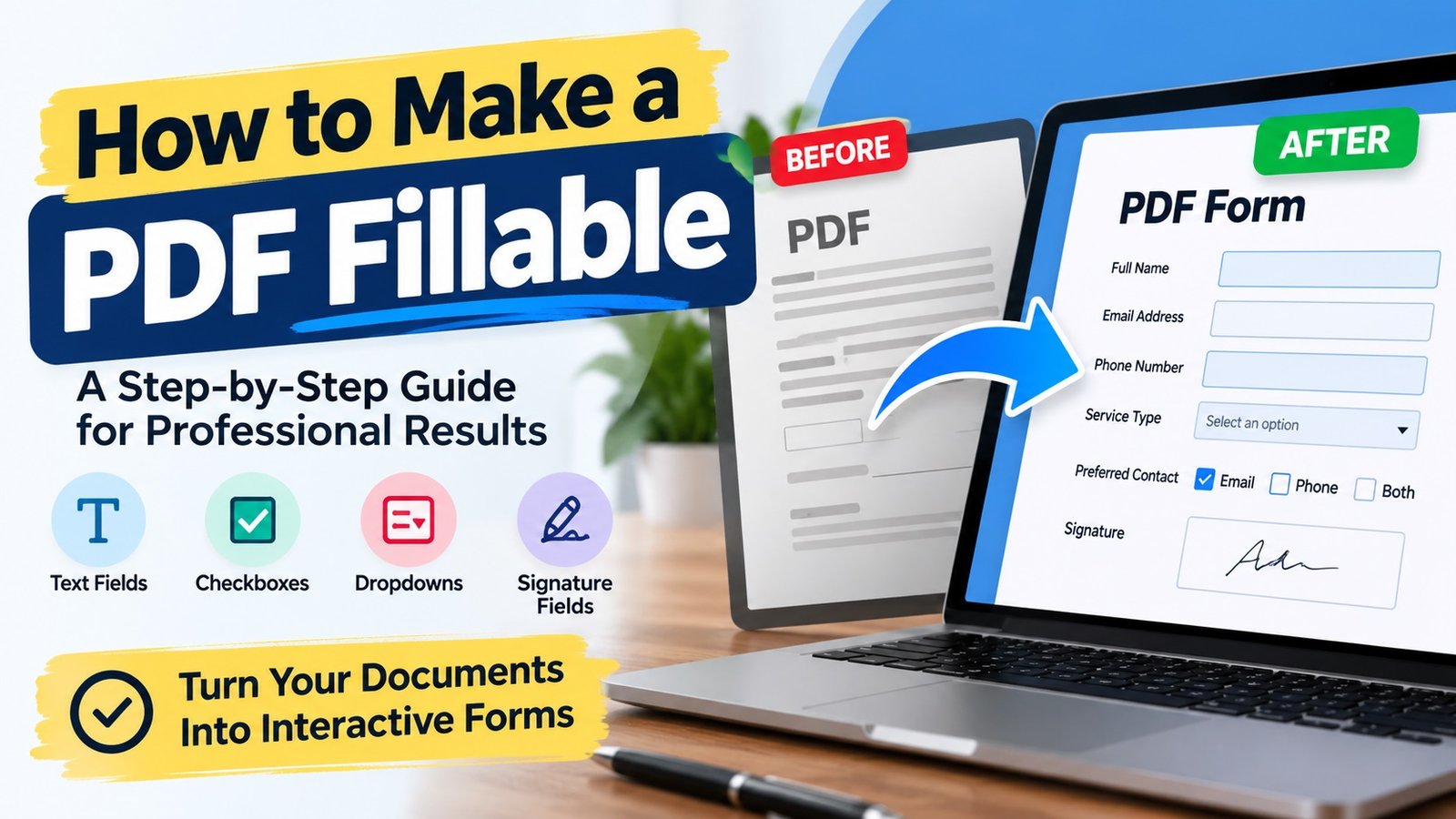
Have you ever needed to turn a regular PDF document into a form that people can complete on their computers or phones? Whether you need a customer intake form, job application, invoice, contract, or employee information form, a fillable PDF can make the process faster and more convenient.
Learning how to make a PDF fillable can help you reduce paperwork, collect information more efficiently, and create a better experience for your customers, employees, and business partners.
The good news is that you do not always need to create a new document from scratch. You can often convert an existing PDF, Word document, Excel file, or scanned form into an interactive PDF.
In this guide, you will learn how to create a fillable PDF, which tools you can use, what features to include, and when professional PDF form creation services may be the better choice.
What Is a Fillable PDF?
A fillable PDF is a Portable Document Format file that contains interactive fields users can complete electronically. Instead of printing the document and writing on it by hand, users can enter information directly into the form.
Depending on how the form is designed, it may include:
- Text fields: Enter names, addresses, phone numbers, and other information.
- Checkboxes: Select one or more options.
- Radio buttons: Choose one option from a group.
- Dropdown menus: Select from a list of predefined choices.
- Date fields: Enter or select dates.
- Signature fields: Add a signature where supported by the chosen PDF software.
- Calculated fields: Perform basic calculations, such as adding invoice totals.
- Submit buttons: Send completed information through a configured submission method.
For example, a business can use a fillable PDF customer intake form to collect contact details, project requirements, and service preferences without asking customers to print and scan multiple pages.
A well-designed fillable PDF can help businesses organize information, reduce manual data entry, and simplify everyday administrative tasks.
Why Do Businesses Need Fillable PDF Forms?
Businesses across the United States use fillable PDF forms for many different purposes. They are especially useful when information needs to be collected in a consistent format.
Here are some common applications.
1. Customer Intake Forms
Service providers, consultants, agencies, and other businesses can use fillable PDF intake forms to collect customer information before starting a project.
These forms may include contact information, service requirements, project details, and additional questions.
2. Job Applications and Employee Forms
HR teams can use fillable PDF forms for job applications, employee information, onboarding documents, and internal requests.
Standardized fields help employees and applicants provide information in a consistent format.
3. Invoices and Payment Forms
Businesses can use fillable PDF invoices to enter customer details, product or service descriptions, quantities, prices, and payment terms.
Calculated fields can also be configured when supported by the PDF software and form design.
4. Contracts and Agreements
Fillable PDF documents can make it easier to enter names, dates, addresses, and other contract details. Signature fields may also be included when appropriate.
For legally significant documents, make sure the form and signing process meet the requirements that apply to your situation.
5. Surveys and Feedback Forms
Organizations can use fillable PDF questionnaires to collect feedback, preferences, registrations, and other responses.
The right combination of text fields, checkboxes, and dropdown menus makes these forms easier to complete.
How to Make a PDF Fillable: Step-by-Step Guide
One of the most common ways to create a fillable PDF is to use Adobe Acrobat. It allows you to work with existing documents, add interactive fields, review the form, and save the finished file.
Follow these steps to create a fillable PDF form.
Step 1: Prepare Your Existing Document
Start with the document you want to convert into a fillable PDF.
You can use:
- An existing PDF document
- A Microsoft Word document
- An Excel spreadsheet
- A scanned paper form
- A document designed using another compatible application
Before you begin, review the document’s layout. Make sure the labels are clear, the spacing is consistent, and there is enough room for users to enter information.
For example, a customer information form might include sections for full name, email address, phone number, business name, and service requirements.
Tip: A clean, organized document is easier to convert into a professional fillable PDF.
Step 2: Open Adobe Acrobat
Open your document in Adobe Acrobat.
In the Acrobat interface, locate Prepare a form. Depending on your version, you may find it under All tools or through the form preparation options.
Choose the document you want to use as the starting point.
If you are creating a form from a blank page, Acrobat also supports creating a form from scratch.
Step 3: Automatically Detect Form Fields
When you use an existing document, Acrobat can analyze the layout and identify areas that may be intended for form fields.
For example, it may recognize blank lines or spaces next to labels such as:
- Full Name
- Email Address
- Phone Number
- Date
- Signature
Review the automatically detected fields carefully. Automatic detection can save time, but it may not identify every field correctly.
You may need to move, resize, remove, or add fields to match the document’s layout.
Step 4: Add the Required Form Fields
Next, add the interactive fields your document needs.
Choose the appropriate field type for each question or information area.
For example:
| Information needed | Recommended field |
|---|---|
| Customer name | Text field |
| Email address | Text field |
| Preferred service | Dropdown menu |
| Terms acknowledgment | Checkbox |
| Preferred contact method | Radio buttons |
| Appointment date | Date field |
| Customer signature | Signature field |
Avoid adding unnecessary fields. A form should collect the information you actually need without making the process difficult for users.
For longer responses, consider using multiline text fields. For required information, configure the field’s required setting when supported.
Step 5: Customize the Form Fields
A professional fillable PDF should do more than look good. Its fields should also work correctly.
Review the properties of each field and customize the settings where needed.
Consider these improvements:
- Use clear field names.
- Make text fields large enough for the expected answers.
- Set appropriate date or number formats.
- Mark essential fields as required.
- Add helpful descriptions or tooltips.
- Configure dropdown options carefully.
- Set a logical order for moving between fields using the keyboard.
For example, a date field should accept dates in the format your business expects. A phone number field should provide enough space for the intended format.
These small details can make a form easier to complete and reduce avoidable mistakes.
Step 6: Add Signature or Submission Features if Needed
Some forms need more than basic text fields and checkboxes.
Depending on your requirements, you may want to include a signature field, a reset button, a submit button, or automatic calculations.
However, these features require the right configuration.
A signature field does not automatically mean that a document has a legally valid electronic signature workflow. Similarly, a submit button will not necessarily send information anywhere unless the submission method has been configured correctly.
Before distributing the form, confirm that any required signature, submission, or calculation feature works as intended.
Step 7: Preview and Test the Form
Never assume a fillable PDF is ready just because the fields appear on the page.
Preview the form and complete it as a typical user would.
Check the following:
- Can you enter information into every intended field?
- Do the checkboxes and dropdown menus work?
- Are the fields positioned correctly?
- Can users enter longer responses where needed?
- Do required fields behave as expected?
- Are the tab order and field labels logical?
- Do calculations and buttons work correctly?
- Can the completed document be saved and reopened with the entered information intact?
Test the form in the PDF applications and devices your intended users are likely to use. Some advanced features may behave differently across viewers.
Once you are satisfied with the results, save the finished PDF and keep an original copy for future edits.
How to Make a PDF Fillable Without Adobe Acrobat
Adobe Acrobat is one option, but it is not the only tool available.
Depending on your needs, you can explore other PDF editors and form creation tools. Some offer online editing, while others provide desktop applications.
When choosing a tool, consider these factors:
Ease of use: Can you add and edit form fields without a complicated process?
Field options: Does the tool support text fields, checkboxes, dropdowns, and signature-related features?
Compatibility: Will the finished PDF work in the applications your recipients use?
Privacy: Does the tool meet your requirements for handling confidential documents?
Cost: Does the available free plan or paid subscription include the features you need?
Advanced functionality: Do you need calculations, validation rules, automatic submissions, or other specialized features?
Free tools may be sufficient for a simple form. For a complex business document, however, you may need a more capable editor or professional assistance.
Before uploading sensitive business or customer information to an online PDF tool, review its privacy policy and data-handling practices.
Common Fillable PDF Problems and How to Fix Them
Even a carefully prepared form can have problems if its fields or settings are not configured correctly.
Here are several common issues to check.
The PDF Is Not Actually Fillable
A PDF may contain blank lines and boxes without having interactive form fields.
Solution: Open the document in a PDF editor that supports form creation and add the appropriate interactive fields.
Text Does Not Fit Inside the Fields
A field may be too small for a name, address, or longer response.
Solution: Resize the field or adjust its text settings. Test the field with realistic sample answers before distributing the document.
Entered Information Is Not Saved
Some users may enter information but find that it disappears when they reopen the file.
Solution: Check the PDF viewer, save the completed document locally, reopen it, and verify that the information remains. If the issue continues, test the form in another supported PDF application.
The Dropdown Menu or Checkbox Does Not Work
This may happen when fields have been configured incorrectly or a PDF viewer does not support a particular feature as expected.
Solution: Review the field properties and test the document in a compatible PDF application.
The Form Looks Different on Another Device
Fonts, field sizes, and advanced features may not display consistently across every device or viewer.
Solution: Test the PDF on common desktop and mobile viewing environments and adjust the layout where necessary.
The Submit Button Does Not Send the Form
A button may look functional but lack a configured submission action.
Solution: Check the submission settings and confirm that the destination and workflow are configured correctly. If the form collects sensitive information, use an appropriate secure submission method.
DIY PDF Creation vs. Professional Fillable PDF Services
Creating a basic fillable PDF yourself can be a practical choice. However, some projects require more time, technical knowledge, or attention to detail.
The right approach depends on the complexity of the form and how it will be used.
| Requirement | DIY approach | Professional service |
|---|---|---|
| Simple form with a few fields | Often suitable | Optional |
| Converting an existing document | Suitable for many users | Helpful for complex layouts |
| Multiple pages and many fields | Can take more time | Useful for efficient setup |
| Advanced calculations and validation | Requires additional knowledge | Useful when specialized configuration is needed |
| Consistent business branding | Requires design effort | Can provide a polished, consistent layout |
| Testing and quality assurance | Must be handled by you | Can be included in the agreed scope |
Professional PDF form creation services can help when you need a polished, reliable document without spending hours configuring and testing individual fields.
A service provider may help convert an existing document, add interactive fields, configure dropdown menus, create signature areas, improve the layout, and test the finished PDF.
The exact deliverables depend on the provider and the project requirements, so confirm the scope before placing an order.
What to Look for in a Professional Fillable PDF Service
If you plan to hire someone to create a fillable PDF, consider more than the appearance of the final document.
Look for a provider who can:
- Convert existing Word, Excel, or PDF documents into interactive forms.
- Create and configure the required form fields.
- Preserve your existing layout or improve it when requested.
- Add dropdowns, checkboxes, signature areas, and other required elements.
- Configure calculations or validation rules when needed.
- Test the form and correct field alignment issues.
- Deliver the editable source file or reusable template if included in the agreement.
- Handle confidential documents according to your privacy requirements.
Before requesting a quote, explain what the form needs to do, how many pages it contains, which fields are required, and whether you need advanced functionality.
Providing the original document and a list of requirements can help the service provider estimate the work more accurately.
Frequently Asked Questions About Fillable PDFs
1. How do I make a PDF fillable?
Open your PDF in a compatible PDF editor, locate its form creation tool, and add interactive fields such as text boxes, checkboxes, dropdown menus, or signature fields. Preview the form, test the fields, and save the finished document.
2. Can I make an existing PDF fillable?
Yes. You can often convert an existing PDF into a fillable form without rebuilding the entire document. You may need to add or adjust fields manually, especially if the original file has a complex layout.
3. Can I turn a Word document into a fillable PDF?
Yes. You can export or save your Word document as a PDF and then use a compatible PDF editor to add interactive form fields. Some PDF editors can also work directly with supported source documents.
4. Can I convert a scanned document into a fillable PDF?
Yes. A scanned document can serve as the background for a fillable form. You can add interactive fields over the relevant areas. Depending on the scan, you may need to improve the image quality or correct the layout before adding fields.
5. Can I create a fillable PDF for free?
Some tools offer free PDF editing or form creation features. Availability varies by application and plan, so check whether the tool supports the field types and functions you need before starting.
6. Can a fillable PDF include an electronic signature?
Yes. A PDF can include a signature field or be used in a supported electronic signature workflow. The exact functionality depends on the PDF editor and signing solution. For important agreements, verify that the process meets your legal and business requirements.
7. Why is my fillable PDF not working?
Common reasons include missing or incorrectly configured fields, unsupported PDF viewer features, problems saving the completed document, and incorrectly configured buttons. Test the file in a compatible viewer and review the field properties.
8. Should I hire a professional to create a fillable PDF?
Professional help may be worthwhile if your form has multiple pages, many fields, complex calculations, specific branding requirements, or advanced submission features. For a simple form, creating it yourself may be sufficient.
Final Thoughts
Learning how to make a PDF fillable can help you replace manual paperwork with a more convenient digital process. Whether you are creating a customer intake form, employee application, invoice, contract, or feedback questionnaire, the key is to combine a clear layout with correctly configured and thoroughly tested form fields.
For simple documents, a PDF editor may provide everything you need. For more complex business forms, professional PDF form creation services can help save time and deliver a polished result.
Need a professionally created fillable PDF?
If you have an existing PDF, Word document, Excel file, or scanned form that needs to become an interactive PDF, consider getting professional help. A well-designed fillable form can make it easier for your customers, employees, and business partners to provide information accurately.
Contact us to discuss your requirements for custom fillable PDF form creation, document conversion, interactive form fields, and PDF form customization. Share your document and explain the features you need to receive a quote for your project.
About the Author
Anexplore Digital is a digital marketing and data solutions agency that helps businesses grow online and work more efficiently. Our services include social media marketing, content creation, lead generation, custom website and e-commerce design, and AI-powered digital marketing. We also provide Excel automation, VBA development, Power BI dashboards, and fillable PDF form solutions.
We help businesses improve their online visibility, reach high-intent audiences, and build sustainable growth strategies. With experience serving clients across the United States, the United Kingdom, Europe, Canada, Australia, and beyond, our team continually explores emerging technologies, AI tools, search trends, and marketing strategies to deliver practical value for every client.