
Tag: Data Analytics

  • How AI Tools Can Improve Your Business Website

    How AI Tools Can Improve Your Business Website

    Introduction

    Your business website works around the clock. It answers questions, shows off your services, and turns visitors into customers. But keeping it fast, helpful, and up to date takes time that most business owners simply don’t have.

    That’s where artificial intelligence (AI) comes in. Today, AI tools can help you write better content, answer customer questions instantly, improve your search rankings, and understand what your visitors really want.

    The best part? You don’t need to be a tech expert or have a big budget to get started. Many AI tools are affordable, easy to use, and designed for small and growing businesses.

    In this guide, you’ll learn how AI tools can improve your business website, which types of tools are worth using, how to get started, and which mistakes to avoid.

    What Are AI Tools for Business Websites?

    AI tools for business websites are software programs that use artificial intelligence to handle tasks that normally require human time and effort. They can understand language, spot patterns in data, and make suggestions or decisions based on what they learn.

    For example, an AI tool might:

    • Answer a customer’s question through a website chat window
    • Suggest better headlines for your service pages
    • Find keywords your customers are searching for on Google
    • Show different product recommendations to different visitors
    • Alert you when your website is loading slowly

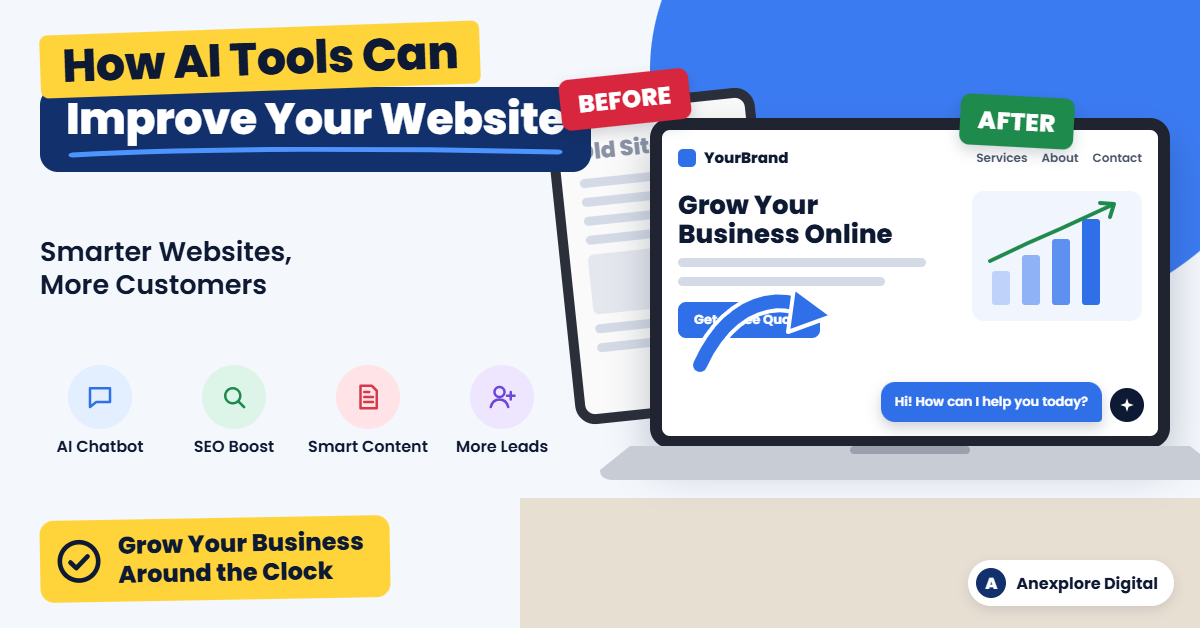
    In simple terms, AI tools act like a smart assistant for your website. They help you work faster, make better decisions, and give visitors a more helpful experience.

    10 Ways AI Tools Can Improve Your Business Website

    AI can help almost every part of your website, from the first impression to the final sale. Here are ten practical ways to put it to work.

    1. Provide 24/7 Customer Support with AI Chatbots

    Customers often have questions outside regular business hours. An AI chatbot can answer common questions instantly, day or night.

    It can share your business hours, explain your services, help visitors book appointments, and collect contact details for follow-up. When a question is too complex, a good chatbot can pass the conversation to a real person.

    Tip: Train your chatbot with your own FAQs, service details, and policies so its answers are accurate and match your brand.

    2. Create Better Website Content Faster

    Writing service pages, blog posts, and product descriptions takes time. AI writing tools can help you create first drafts, brainstorm ideas, and rewrite content so it is clearer and easier to read.

    However, AI should support your writing, not replace your expertise. Always review, edit, and add your own experience, examples, and brand voice before publishing.

    3. Improve Your Search Engine Rankings

    A beautiful website won’t help much if customers can’t find it on Google. AI-powered SEO tools can help you:

    • Find keywords your target customers are searching for
    • Analyze what top-ranking competitors are doing
    • Suggest improvements to titles, headings, and meta descriptions
    • Identify missing topics in your content
    • Spot technical issues such as broken links or missing image alt text

    With these insights, you can make smarter decisions about which pages to improve and which new content to create.

    4. Personalize the Visitor Experience

    Not every visitor wants the same thing. AI personalization tools can show different content, offers, or product recommendations based on a visitor’s behavior, location, or interests.

    For example, an online store might recommend products similar to the ones a shopper just viewed. A service business might highlight different services for first-time visitors and returning customers.

    Personalization helps visitors find what they need faster, which can increase engagement and sales.

    5. Design and Build Pages More Easily

    Many website builders now include AI features that can suggest layouts, color schemes, and page sections. Some can even create a basic page draft from a short description of your business.

    These features are useful for quick drafts and new ideas. For a polished, professional website that reflects your brand, combine AI suggestions with thoughtful design and careful testing.

    6. Make Your Website More Accessible

    An accessible website is easier for everyone to use, including people with disabilities. AI tools can help generate image alt text, check color contrast, and flag issues that may make your site harder to navigate.

    AI tools are a helpful starting point, but they cannot guarantee full compliance with accessibility standards such as the Web Content Accessibility Guidelines (WCAG). A manual review is still important.

    7. Speed Up Your Website

    Slow websites frustrate visitors and can hurt your search rankings. AI-powered performance tools can compress images, identify heavy files, and suggest fixes that help pages load faster.

    Some hosting and content delivery services also use smart technology to deliver content more efficiently to visitors in different locations.

    8. Understand Your Visitors with Smarter Analytics

    Your website data holds valuable information, but it can be hard to understand. AI analytics tools can highlight trends, explain changes in traffic, and point out pages where visitors are leaving.

    Instead of digging through endless reports, you get clear insights you can act on, such as which pages need improvement or which marketing channels bring in the best leads.

    9. Strengthen Website Security

    Cyber threats are a real concern for businesses of every size. Many modern security tools use AI to detect unusual activity, block suspicious traffic, and filter spam from contact forms.

    AI-powered security adds an extra layer of protection, but it works best alongside basics such as regular updates, strong passwords, and reliable backups.

    10. Generate and Qualify More Leads

    AI can help turn more visitors into potential customers. Smart forms, chatbots, and pop-ups can ask the right questions at the right time and collect useful information.

    Some tools can also score leads based on their behavior, helping you focus on the people most likely to become customers. When connected to your customer relationship management (CRM) system, AI can make follow-up faster and more organized.

    Popular Types of AI Tools for Business Websites

    The right tools depend on your goals. This table shows common categories and how each one can help your website.

    AI tool categoryWhat it helps withBest for
    AI chatbotsAnswering questions, booking appointments, capturing leadsService businesses, online stores
    AI writing assistantsDrafting blog posts, page copy, and product descriptionsBusinesses that publish content regularly
    AI SEO toolsKeyword research, content optimization, technical auditsBusinesses that want more organic traffic
    AI website buildersPage layouts, design suggestions, quick draftsNew websites and landing pages
    AI image toolsCreating, editing, and resizing website imagesBrands that need fresh visuals
    AI analytics toolsTraffic insights, visitor behavior, trend reportsBusinesses that make data-driven decisions
    AI personalization toolsProduct recommendations, tailored content and offersE-commerce and membership websites
    AI security toolsThreat detection, spam filtering, bot blockingAny business website

    Tip: Start with one or two categories that solve your biggest problem instead of adding many tools at once.

    How to Start Using AI Tools on Your Business Website

    You don’t have to change everything at once. Follow these simple steps to add AI to your website the smart way.

    1. Identify your biggest challenge. Are you missing leads after hours? Struggling to rank on Google? Spending too long writing content? Choose the problem that matters most to your business right now.
    2. Choose the right type of tool. Match the tool to the problem. For example, use a chatbot for customer questions or an SEO tool for search visibility.
    3. Check compatibility. Make sure the tool works with your website platform, such as WordPress, Shopify, Wix, or Squarespace.
    4. Review privacy and security. Read how the tool collects, stores, and uses data, especially if it handles customer information.
    5. Start small and test. Try the tool on one page or one task first. Many tools offer free trials or free plans.
    6. Measure the results. Track changes in traffic, leads, response times, or sales so you know whether the tool is worth keeping.
    7. Expand what works. Once a tool proves its value, use it more widely or add another tool to solve your next challenge.

    Common Mistakes to Avoid When Using AI on Your Website

    AI is powerful, but it isn’t perfect. Avoid these common mistakes to protect your brand and your customers.

    Publishing AI content without review. AI can make factual errors or sound generic. Always check facts, edit for clarity, and add your own expertise before anything goes live.

    Losing your brand voice. Your customers choose you for who you are. Make sure AI-generated text still sounds like your business.

    Ignoring data privacy. Some AI tools process visitor information. Make sure your privacy policy is accurate and that you follow the laws that apply to your business.

    Using too many tools at once. Too many plugins and scripts can slow down your website and create conflicts. Choose quality over quantity.

    Letting chatbots frustrate customers. A chatbot that can’t help is worse than no chatbot at all. Always give visitors an easy way to reach a real person.

    Setting it and forgetting it. AI tools need regular review. Check their performance, update their information, and adjust settings as your business grows.

    DIY AI Setup vs. Professional Help

    Some AI tools are simple enough to set up on your own. Others take more planning, customization, and testing. This comparison can help you decide.

    SituationDIY approachProfessional help
    Adding a basic chatbot pluginOften suitableOptional
    Writing a few blog posts with AI helpSuitable with careful editingHelpful for SEO strategy
    Full website SEO improvementTime-consuming to learnSaves time and builds a clear plan
    Custom chatbot trained on your servicesRequires technical setupUseful for accuracy and integration
    Connecting AI with your CRM or lead formsCan be complexRecommended for reliable automation
    Building a new AI-ready business websitePossible with website buildersDelivers a polished, branded result

    If you have the time and enjoy learning new technology, starting on your own is a great option. If you would rather focus on running your business, a professional team can set up, test, and manage the right tools for you.

    Frequently Asked Questions

    1. How can AI tools improve my business website?

    AI tools can improve your website by answering customer questions 24/7, helping you create content faster, improving SEO, personalizing the visitor experience, speeding up pages, strengthening security, and helping you collect more leads.

    2. Are AI tools expensive for small businesses?

    Not necessarily. Many AI tools offer free plans or affordable monthly subscriptions. Costs depend on the features you need, the number of users, and how much you use the tool.

    3. Do I need technical skills to use AI on my website?

    Many AI tools are designed for beginners and work as simple plugins or built-in features. More advanced setups, such as custom chatbots or CRM integrations, may require technical help.

    4. Can AI write all of my website content?

    AI can help you draft content, but it should not replace human review. Edit everything for accuracy, clarity, and brand voice, and add your real experience so the content is truly helpful.

    5. Will AI-generated content hurt my Google rankings?

    Google focuses on whether content is helpful, accurate, and created for people, not simply on how it was produced. Low-quality content made only to manipulate rankings can perform poorly, so always prioritize quality.

    6. Is an AI chatbot worth it for a small business?

    For many businesses, yes. A chatbot can answer common questions, capture leads after hours, and save your team time. Make sure it is set up with accurate information and offers a way to contact a real person.

    7. Which AI tool should I start with?

    Start with the tool that solves your biggest problem. If you miss customer inquiries, try a chatbot. If you need more traffic, start with an AI SEO tool. If content takes too long, try an AI writing assistant.

    Final Thoughts

    AI tools are no longer just for large corporations. Today, businesses of every size can use AI to build smarter, faster, and more helpful websites.

    From 24/7 chatbots and better content to stronger SEO and more qualified leads, AI can help your website work harder for your business. The key is to start with a clear goal, choose the right tools, and keep a human touch in everything you publish.

    Ready to make your business website smarter?

    At Anexplore Digital, we help businesses use AI-powered solutions to improve their websites, attract more visitors, and turn traffic into customers. Whether you need a new business website, AI chatbot setup, SEO improvements, or lead generation support, our team is here to help.

    Contact us today to discuss your project and find the right AI solutions for your business.


    About the Author

    Anexplore Digital is a digital marketing and data solutions agency that helps businesses grow online and work more efficiently. Our services include social media marketing, content creation, lead generation, custom website and e-commerce design, and AI-powered digital marketing. We also provide Excel automation, VBA development, Power BI dashboards, and fillable PDF form solutions.

    We help businesses improve their online visibility, reach high-intent audiences, and build sustainable growth strategies. With experience serving clients across the United States, the United Kingdom, Europe, Canada, Australia, and beyond, our team continually explores emerging technologies, AI tools, search trends, and marketing strategies to deliver practical value for every client.
  • How to Make a PDF Fillable: A Professional PDF Form Creation Guide

    How to Make a PDF Fillable: A Professional PDF Form Creation Guide

    Have you ever needed to turn a regular PDF document into a form that people can complete on their computers or phones? Whether you need a customer intake form, job application, invoice, contract, or employee information form, a fillable PDF can make the process faster and more convenient.

    Learning how to make a PDF fillable can help you reduce paperwork, collect information more efficiently, and create a better experience for your customers, employees, and business partners.

    The good news is that you do not always need to create a new document from scratch. You can often convert an existing PDF, Word document, Excel file, or scanned form into an interactive PDF.

    In this guide, you will learn how to create a fillable PDF, which tools you can use, what features to include, and when professional PDF form creation services may be the better choice.

    What Is a Fillable PDF?

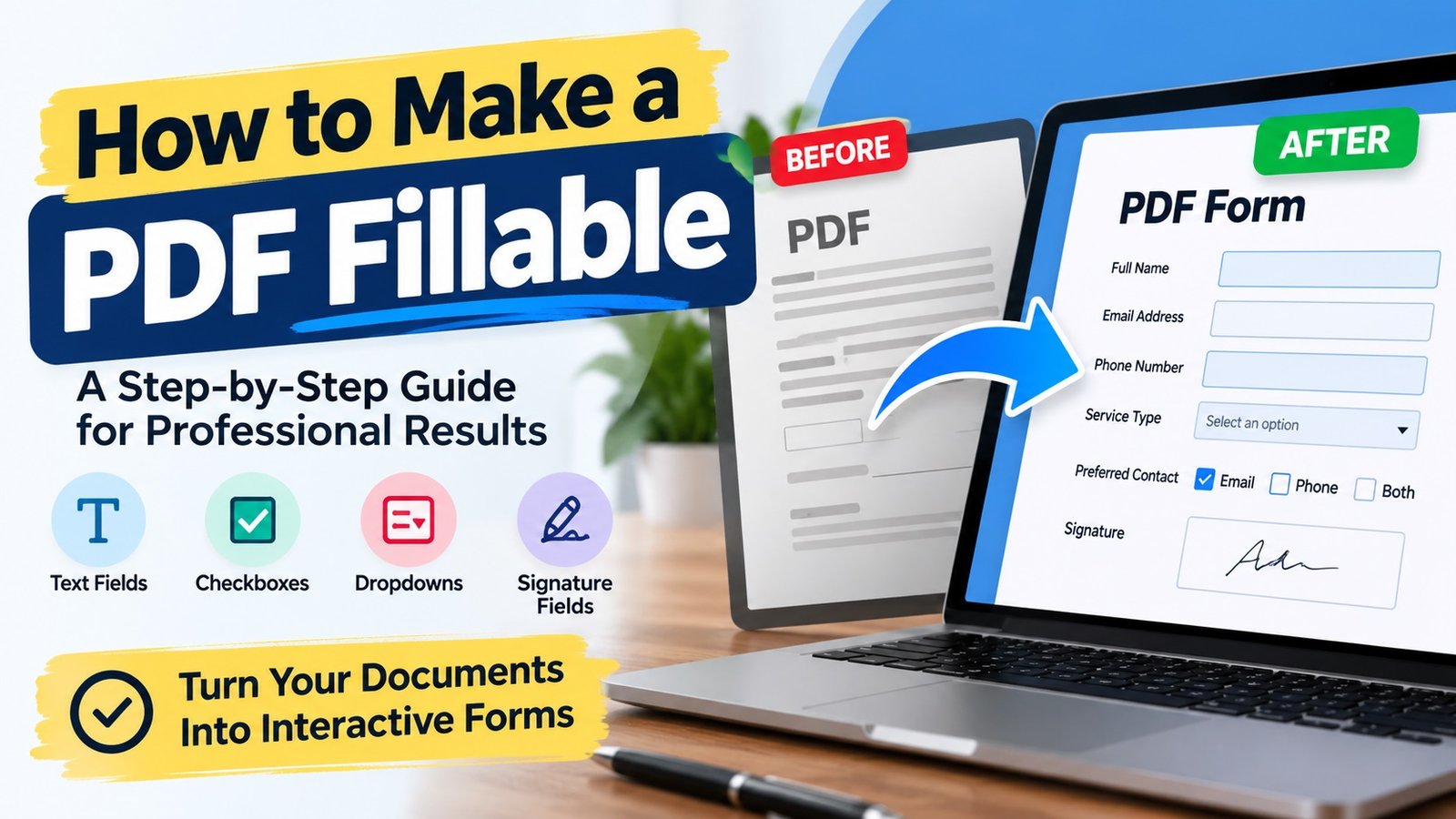
    A fillable PDF is a Portable Document Format file that contains interactive fields users can complete electronically. Instead of printing the document and writing on it by hand, users can enter information directly into the form.

    Depending on how the form is designed, it may include:

    • Text fields: Enter names, addresses, phone numbers, and other information.
    • Checkboxes: Select one or more options.
    • Radio buttons: Choose one option from a group.
    • Dropdown menus: Select from a list of predefined choices.
    • Date fields: Enter or select dates.
    • Signature fields: Add a signature where supported by the chosen PDF software.
    • Calculated fields: Perform basic calculations, such as adding invoice totals.
    • Submit buttons: Send completed information through a configured submission method.

    For example, a business can use a fillable PDF customer intake form to collect contact details, project requirements, and service preferences without asking customers to print and scan multiple pages.

    A well-designed fillable PDF can help businesses organize information, reduce manual data entry, and simplify everyday administrative tasks.

    Why Do Businesses Need Fillable PDF Forms?

    Businesses across the United States use fillable PDF forms for many different purposes. They are especially useful when information needs to be collected in a consistent format.

    Here are some common applications.

    1. Customer Intake Forms

    Service providers, consultants, agencies, and other businesses can use fillable PDF intake forms to collect customer information before starting a project.

    These forms may include contact information, service requirements, project details, and additional questions.

    2. Job Applications and Employee Forms

    HR teams can use fillable PDF forms for job applications, employee information, onboarding documents, and internal requests.

    Standardized fields help employees and applicants provide information in a consistent format.

    3. Invoices and Payment Forms

    Businesses can use fillable PDF invoices to enter customer details, product or service descriptions, quantities, prices, and payment terms.

    Calculated fields can also be configured when supported by the PDF software and form design.

    4. Contracts and Agreements

    Fillable PDF documents can make it easier to enter names, dates, addresses, and other contract details. Signature fields may also be included when appropriate.

    For legally significant documents, make sure the form and signing process meet the requirements that apply to your situation.

    5. Surveys and Feedback Forms

    Organizations can use fillable PDF questionnaires to collect feedback, preferences, registrations, and other responses.

    The right combination of text fields, checkboxes, and dropdown menus makes these forms easier to complete.

    How to Make a PDF Fillable: Step-by-Step Guide

    One of the most common ways to create a fillable PDF is to use Adobe Acrobat. It allows you to work with existing documents, add interactive fields, review the form, and save the finished file.

    Follow these steps to create a fillable PDF form.

    Step 1: Prepare Your Existing Document

    Start with the document you want to convert into a fillable PDF.

    You can use:

    • An existing PDF document
    • A Microsoft Word document
    • An Excel spreadsheet
    • A scanned paper form
    • A document designed using another compatible application

    Before you begin, review the document’s layout. Make sure the labels are clear, the spacing is consistent, and there is enough room for users to enter information.

    For example, a customer information form might include sections for full name, email address, phone number, business name, and service requirements.

    Tip: A clean, organized document is easier to convert into a professional fillable PDF.

    Step 2: Open Adobe Acrobat

    Open your document in Adobe Acrobat.

    In the Acrobat interface, locate Prepare a form. Depending on your version, you may find it under All tools or through the form preparation options.

    Choose the document you want to use as the starting point.

    If you are creating a form from a blank page, Acrobat also supports creating a form from scratch.

    Step 3: Automatically Detect Form Fields

    When you use an existing document, Acrobat can analyze the layout and identify areas that may be intended for form fields.

    For example, it may recognize blank lines or spaces next to labels such as:

    • Full Name
    • Email Address
    • Phone Number
    • Date
    • Signature

    Review the automatically detected fields carefully. Automatic detection can save time, but it may not identify every field correctly.

    You may need to move, resize, remove, or add fields to match the document’s layout.

    Step 4: Add the Required Form Fields

    Next, add the interactive fields your document needs.

    Choose the appropriate field type for each question or information area.

    For example:

    Information neededRecommended field
    Customer nameText field
    Email addressText field
    Preferred serviceDropdown menu
    Terms acknowledgmentCheckbox
    Preferred contact methodRadio buttons
    Appointment dateDate field
    Customer signatureSignature field

    Avoid adding unnecessary fields. A form should collect the information you actually need without making the process difficult for users.

    For longer responses, consider using multiline text fields. For required information, configure the field’s required setting when supported.

    Step 5: Customize the Form Fields

    A professional fillable PDF should do more than look good. Its fields should also work correctly.

    Review the properties of each field and customize the settings where needed.

    Consider these improvements:

    • Use clear field names.
    • Make text fields large enough for the expected answers.
    • Set appropriate date or number formats.
    • Mark essential fields as required.
    • Add helpful descriptions or tooltips.
    • Configure dropdown options carefully.
    • Set a logical order for moving between fields using the keyboard.

    For example, a date field should accept dates in the format your business expects. A phone number field should provide enough space for the intended format.

    These small details can make a form easier to complete and reduce avoidable mistakes.

    Step 6: Add Signature or Submission Features if Needed

    Some forms need more than basic text fields and checkboxes.

    Depending on your requirements, you may want to include a signature field, a reset button, a submit button, or automatic calculations.

    However, these features require the right configuration.

    A signature field does not automatically mean that a document has a legally valid electronic signature workflow. Similarly, a submit button will not necessarily send information anywhere unless the submission method has been configured correctly.

    Before distributing the form, confirm that any required signature, submission, or calculation feature works as intended.

    Step 7: Preview and Test the Form

    Never assume a fillable PDF is ready just because the fields appear on the page.

    Preview the form and complete it as a typical user would.

    Check the following:

    • Can you enter information into every intended field?
    • Do the checkboxes and dropdown menus work?
    • Are the fields positioned correctly?
    • Can users enter longer responses where needed?
    • Do required fields behave as expected?
    • Are the tab order and field labels logical?
    • Do calculations and buttons work correctly?
    • Can the completed document be saved and reopened with the entered information intact?

    Test the form in the PDF applications and devices your intended users are likely to use. Some advanced features may behave differently across viewers.

    Once you are satisfied with the results, save the finished PDF and keep an original copy for future edits.

    How to Make a PDF Fillable Without Adobe Acrobat

    Adobe Acrobat is one option, but it is not the only tool available.

    Depending on your needs, you can explore other PDF editors and form creation tools. Some offer online editing, while others provide desktop applications.

    When choosing a tool, consider these factors:

    Ease of use: Can you add and edit form fields without a complicated process?

    Field options: Does the tool support text fields, checkboxes, dropdowns, and signature-related features?

    Compatibility: Will the finished PDF work in the applications your recipients use?

    Privacy: Does the tool meet your requirements for handling confidential documents?

    Cost: Does the available free plan or paid subscription include the features you need?

    Advanced functionality: Do you need calculations, validation rules, automatic submissions, or other specialized features?

    Free tools may be sufficient for a simple form. For a complex business document, however, you may need a more capable editor or professional assistance.

    Before uploading sensitive business or customer information to an online PDF tool, review its privacy policy and data-handling practices.

    Common Fillable PDF Problems and How to Fix Them

    Even a carefully prepared form can have problems if its fields or settings are not configured correctly.

    Here are several common issues to check.

    The PDF Is Not Actually Fillable

    A PDF may contain blank lines and boxes without having interactive form fields.

    Solution: Open the document in a PDF editor that supports form creation and add the appropriate interactive fields.

    Text Does Not Fit Inside the Fields

    A field may be too small for a name, address, or longer response.

    Solution: Resize the field or adjust its text settings. Test the field with realistic sample answers before distributing the document.

    Entered Information Is Not Saved

    Some users may enter information but find that it disappears when they reopen the file.

    Solution: Check the PDF viewer, save the completed document locally, reopen it, and verify that the information remains. If the issue continues, test the form in another supported PDF application.

    The Dropdown Menu or Checkbox Does Not Work

    This may happen when fields have been configured incorrectly or a PDF viewer does not support a particular feature as expected.

    Solution: Review the field properties and test the document in a compatible PDF application.

    The Form Looks Different on Another Device

    Fonts, field sizes, and advanced features may not display consistently across every device or viewer.

    Solution: Test the PDF on common desktop and mobile viewing environments and adjust the layout where necessary.

    The Submit Button Does Not Send the Form

    A button may look functional but lack a configured submission action.

    Solution: Check the submission settings and confirm that the destination and workflow are configured correctly. If the form collects sensitive information, use an appropriate secure submission method.

    DIY PDF Creation vs. Professional Fillable PDF Services

    Creating a basic fillable PDF yourself can be a practical choice. However, some projects require more time, technical knowledge, or attention to detail.

    The right approach depends on the complexity of the form and how it will be used.

    RequirementDIY approachProfessional service
    Simple form with a few fieldsOften suitableOptional
    Converting an existing documentSuitable for many usersHelpful for complex layouts
    Multiple pages and many fieldsCan take more timeUseful for efficient setup
    Advanced calculations and validationRequires additional knowledgeUseful when specialized configuration is needed
    Consistent business brandingRequires design effortCan provide a polished, consistent layout
    Testing and quality assuranceMust be handled by youCan be included in the agreed scope

    Professional PDF form creation services can help when you need a polished, reliable document without spending hours configuring and testing individual fields.

    A service provider may help convert an existing document, add interactive fields, configure dropdown menus, create signature areas, improve the layout, and test the finished PDF.

    The exact deliverables depend on the provider and the project requirements, so confirm the scope before placing an order.

    What to Look for in a Professional Fillable PDF Service

    If you plan to hire someone to create a fillable PDF, consider more than the appearance of the final document.

    Look for a provider who can:

    • Convert existing Word, Excel, or PDF documents into interactive forms.
    • Create and configure the required form fields.
    • Preserve your existing layout or improve it when requested.
    • Add dropdowns, checkboxes, signature areas, and other required elements.
    • Configure calculations or validation rules when needed.
    • Test the form and correct field alignment issues.
    • Deliver the editable source file or reusable template if included in the agreement.
    • Handle confidential documents according to your privacy requirements.

    Before requesting a quote, explain what the form needs to do, how many pages it contains, which fields are required, and whether you need advanced functionality.

    Providing the original document and a list of requirements can help the service provider estimate the work more accurately.

    Frequently Asked Questions About Fillable PDFs

    1. How do I make a PDF fillable?

    Open your PDF in a compatible PDF editor, locate its form creation tool, and add interactive fields such as text boxes, checkboxes, dropdown menus, or signature fields. Preview the form, test the fields, and save the finished document.

    2. Can I make an existing PDF fillable?

    Yes. You can often convert an existing PDF into a fillable form without rebuilding the entire document. You may need to add or adjust fields manually, especially if the original file has a complex layout.

    3. Can I turn a Word document into a fillable PDF?

    Yes. You can export or save your Word document as a PDF and then use a compatible PDF editor to add interactive form fields. Some PDF editors can also work directly with supported source documents.

    4. Can I convert a scanned document into a fillable PDF?

    Yes. A scanned document can serve as the background for a fillable form. You can add interactive fields over the relevant areas. Depending on the scan, you may need to improve the image quality or correct the layout before adding fields.

    5. Can I create a fillable PDF for free?

    Some tools offer free PDF editing or form creation features. Availability varies by application and plan, so check whether the tool supports the field types and functions you need before starting.

    6. Can a fillable PDF include an electronic signature?

    Yes. A PDF can include a signature field or be used in a supported electronic signature workflow. The exact functionality depends on the PDF editor and signing solution. For important agreements, verify that the process meets your legal and business requirements.

    7. Why is my fillable PDF not working?

    Common reasons include missing or incorrectly configured fields, unsupported PDF viewer features, problems saving the completed document, and incorrectly configured buttons. Test the file in a compatible viewer and review the field properties.

    8. Should I hire a professional to create a fillable PDF?

    Professional help may be worthwhile if your form has multiple pages, many fields, complex calculations, specific branding requirements, or advanced submission features. For a simple form, creating it yourself may be sufficient.

    Final Thoughts

    Learning how to make a PDF fillable can help you replace manual paperwork with a more convenient digital process. Whether you are creating a customer intake form, employee application, invoice, contract, or feedback questionnaire, the key is to combine a clear layout with correctly configured and thoroughly tested form fields.

    For simple documents, a PDF editor may provide everything you need. For more complex business forms, professional PDF form creation services can help save time and deliver a polished result.

    Need a professionally created fillable PDF?

    If you have an existing PDF, Word document, Excel file, or scanned form that needs to become an interactive PDF, consider getting professional help. A well-designed fillable form can make it easier for your customers, employees, and business partners to provide information accurately.

    Contact us to discuss your requirements for custom fillable PDF form creation, document conversion, interactive form fields, and PDF form customization. Share your document and explain the features you need to receive a quote for your project.

    About the Author

    Anexplore Digital is a digital marketing and data solutions agency that helps businesses grow online and work more efficiently. Our services include social media marketing, content creation, lead generation, custom website and e-commerce design, and AI-powered digital marketing. We also provide Excel automation, VBA development, Power BI dashboards, and fillable PDF form solutions.

    We help businesses improve their online visibility, reach high-intent audiences, and build sustainable growth strategies. With experience serving clients across the United States, the United Kingdom, Europe, Canada, Australia, and beyond, our team continually explores emerging technologies, AI tools, search trends, and marketing strategies to deliver practical value for every client.